
Search FAQs
Find by topic
Please refer to the Quick Reference Guide: Submit a NFST Finance & Supply Chain Project or Solution Request
COATT is the Chart of Accounts Translation Tool. This is a module in OneLink that is most often used to assist you in checking the validity of GL strings and Chartfield Combo Edits.
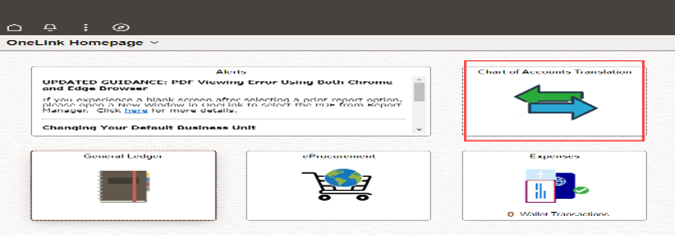
Access the COATT module by logging into OneLink and clicking on the Chart of Accounts Translation tile:
NCOA is the National Chart of Accounts.
NCOA is the General Ledger (GL) terminology used to record, classify, summarize, control and report the financial transactions.
Please follow the Request OneLink Access page for more information on how to obtain access.
Guided Learning is available to assist you. Guided Learning is OneLink’s on-demand resource and training tool that walks you step-by-step to complete your transaction.
- Click on the information icon on the OneLink homepage to access a list of interactive guides
- Search for and select the Review and/or approve an invoice or voucher guide
- Let Guided Learning walk you through correcting this error

Guided Learning is available to assist you. Guided Learning is OneLink’s on-demand resource and training tool that walks you step-by-step to complete your transaction.
- Click on the information icon on the OneLink homepage to access a list of interactive guides
- Search for and select the Review and/or approve an invoice or voucher guide
- Let Guided Learning walk you through approving an invoice
| Guided Learning is available to assist you. Guided Learning is OneLink’s on-demand resource and training tool that walks you step-by-step to complete your transaction
1. Click on the information icon on the OneLink homepage to access a list of interactive guides
|
User needs to provide interface ID from the summary invoice email along with the email ID to be updated in interface configuration for notification list.
There are some reference guides available for different types of uploads. Please visit the Accounts Payable topics on the FSCM Products and Support Website
Accounts Payable – Finance and Supply Chain Products and Support (kaiserpermanente.org)
Guided Learning is available to assist you. Guided Learning is OneLink’s on-demand resource and training tool that walks you step-by-step to complete your transaction.
- Click on the information icon on the OneLink homepage to access a list of interactive guides
- Search for and select the Search for payment information guide
- Let Guided Learning walk you through viewing invoice approval and payment history
For training on how to approve an invoice, Guided Learning is available. Guided Learning is OneLink’s resource and training tool that guides you step-by-step.
- Click on the information icon on the OneLink homepage, to access a list of interactive guides
- Find the desired guide by using a keyword search, e.g., “invoice” and select the topic “Review and/or approve an invoice or voucher”
- Once you start a guide, learn while doing by simply following step-by-step instructions for the OneLink transaction
Visit onelinkinfo.kaiserpermanente.org for a catalog of available AP guides.
Accounts Payable – Finance and Supply Chain Products and Support (kaiserpermanente.org)
Invoicing and Accounts Payable – Kaiser Permanente Vendor Information (kp.org)
If the scheduled payment due date is in the past and no payment reference number exists, please call AP Customer Service 866-858-2226.
This means that you do not have access to this page. If you think you should have access, contact the eSettlements team Kaiser-eSettlements@kp.org.
Kaiser Permanente (KP) suppliers can now register with OneLink eSettlements and submit invoices online. Suppliers need to send an email to KP email ID: Kaiser-eSettlements@kp.org. The Supplier must follow the instructions and set up an Agreement with Kaiser for submitting invoices online. Once agreement setup is complete and agreed to by both parties, suppliers can submit invoices online and track the payment status.
For training on preparing expense reports on behalf of a supervisor/manager, use Guided Learning and Quick Start Videos are available.
To use Guided Learning – OneLink’s on-demand step-by-step training tool:
- Click on the information icon on the OneLink homepage to access a list of interactive guides
- Search for and select the desired guide by using a keyword search. Select “Create an expense report as owner or preparer”
- Once you start a guide, simply follow the step-by-step instructions for the OneLink transaction
To use a Quick Start Video, select the expense type you will be creating, which covers preparing an expense report on behalf of.
Quick Start Videos can be found right above the Frequently Asked Questions.
To withdraw the expense report, please follow the steps in this video or you can use Guided Learning.
To use Guided Learning – OneLink’s resource and step-by-step training tool:
- Click on the information icon on the OneLink homepage, to access a list of interactive guides
- Find the desired guide by using a keyword search, e.g., “Expense” and select “Withdraw an expense report”
- Once you start a guide, simply follow the step-by-step instructions for the OneLink transaction
Guided Learning is available to assist you. Guided Learning is OneLink’s on-demand resource and training tool that walks you step-by-step to complete your transaction
1. Click on the information icon on the OneLink homepage to access a list of interactive guides
2. Search for and select the Review FDA
3. Let the Guided Learning walk you through how to view FDA
Guided Learning is available to assist you. Guided Learning is OneLink’s on-demand resource and training tool that walks you step-by-step to complete your transaction
1. Click on the information icon on the OneLink homepage to access a list of interactive guides
2. Search for and select the Create FDA Delegation
3. Let the Guided Learning walk you through how to Create FDA delegation
Each year, Delegators will be required to review all their delegations before they can be renewed for another year. Delegators will continue to receive notifications 45 days prior to expiration, 15 days prior, and on the day of.
To renew authority before expiration, use Guided Learning. From the OneLink Homepage, select the information icon and search for “Renew FDA – annual renewal”.
If you previously had FDA and can no longer approve, your FDA may have expired due to your FDA not being renewed on time. Once FDA has passed renewal, you can no longer be renewed after expiration. Your Delegator will need to create a new delegation for FDA.
To correct PAR Chartfield error message, please follow the job aid attached.
Correct Chartfield Combination Errors
The PAR replenishment error occurs for several reasons, the reason for the error will be displayed on the par replenishment error page describing what the reason for the error is. It is normally due to a UOM error, or the item is no longer available as part of the inventory. To correct the PAR replenishment error, please follow the job aid attached.
Service Requests are now created in the Contracts Module in Coupa. Please refer to Coupa to Create a Service Request
Click here to refer to Coupa
The Chartfield error message may be due to the account code and GL string combination. A requisition cannot be saved until a valid GL string is used.
Log into OneLink and click on the Chart of Accounts Translation tile from the OneLink homepage, then the Chartfield Combo Edit link to validate the GL string and account code combination (GL unit, GL Location, Department) or contact your local Finance department if you are unsure of the correct account code to use.
- Enter or click and select the Business Unit (Region + Entity) e.g., 0201
- Enter or click and select the NCOA GL Location
- Enter or click and select the NCOA Department
- Enter or click and select the NCOA Account (Account Number for the Item ID)
- Click the Validate button
The Combo Edit Status / Combo Edit Description will show if it Passed or Failed
If it failed, the account code is not open for that Department
Contact the Finance or Controllers office to open the account code for the department, if appropriate
Once a valid GL combination is found, update the requisition with the correct GL string/Chartfield combination.
If you receive a “Profile ID Requires an Asset BU” error message, scroll down to the items on your requisition:
1. Check on the Select All square

2. Click the Schedule Details button
3. Under Distributions click on the Asset Information tab
4. Clear all data in the Profile ID field.
– If you have multiple lines, click the right arrow under the Done button to view/update subsequent lines in the Profile ID fields
5. Click the Done button
Guided Learning is available to assist you. Guided Learning is OneLink’s on-demand resource and training tool that walks you step-by-step to complete your transaction
1. Click on the information icon on the OneLink homepage to access a list of interactive guides
2. Search for and select the Create ePro req for special order types-bill only, bill and replace, standing orders
3. Let Guided Learning walk you through how to Create a Special Request

Guided Learning is available to assist you. Guided Learning is OneLink’s on-demand resource and training tool that walks you step-by-step to complete your transaction
1. Click on the information icon on the OneLink homepage to access a list of interactive guides
2. Search for and select the Create FDA Delegation
3. Let Guided Learning walk you through how to Create FDA delegation while you are out of the office
Go to the OneLink Homepage, in the Search field, enter Review Status, select Manage Requisitions.
You can also use Guided Learning, the OneLink on-demand resource and training tool, to get just-in-time, step-by-step instructions to complete your transaction. To use Guided Learning:
- Click on the information icon on the OneLink homepage to access a list of interactive guides
- In the Search field, enter “Review Status/Edit/Cancel or Copy an ePro Requisition”
- Select the guide and follow the steps to review the status of your requisition
It is highly recommended that you clear the cache on your laptop or computer when first logging in or if you are experiencing issues with the OneLink application. Instructions on clearing your cache can be found by clicking on the video or Quick Reference Guide below!
How to Clear your Browser Cache
How to Clear Browser Cache (video)
If clearing the cache does not resolve Contact the Enterprise Service Desk at (888) 457-4872.
Please contact KP-AP-Customer@kp.org or call 866-858-2226
Guided Learning is available to assist you. Guided Learning is OneLink’s on-demand resource and training tool that walks you step-by-step to complete your transaction
1. Click on the information icon on the OneLink homepage to access a list of interactive guides
2. Search for and select the Create Expense Report as an Owner or Preparer
3. Let the Guided Learning walk you through how to Create an Out of Pocket Expense report
Please contact the Enterprise Service Desk at 888-457-4872 for assistance with your Travel and Expense issue. Please advise the Service Desk to assign the ticket to NFST FSCM EXPENSES.
To contact Travel and Expense Operations, email your question to TEO.Cust.Svc@kp.org or visit the Travel and Expense webpage.
To change the approver on an expense report, you will need to withdraw the expense report. Please follow this video detailing how to withdraw an expense report or you can use Guided Learning.
Guided Learning is available to assist you. Guided Learning is OneLink’s on-demand resource and training tool that walks you step-by-step to complete your transaction
1. Click on the information icon on the OneLink homepage to access a list of interactive guides
2. Search for and select the Withdraw an Expense Report
3. Let the Guided Learning walk you through how to Withdraw an Expense report
Click on this video for information on How to Check the Status of an Expense Report or use Guided Learning.
Guided Learning is available to assist you. Guided Learning is OneLink’s on-demand resource and training tool that walks you step-by-step to complete your transaction
1. Click on the information icon on the OneLink homepage to access a list of interactive guides
2. Search for and select the View or print an Expense Report
3. Let the Guided Learning walk you through how to Check the Status of an Expense report
If an expense report is in approved status, you cannot attach any additional receipts. If the report is still awaiting FDA approval, you can withdraw the expense report and attach the receipts. Follow the steps on this video (link) detailing how to withdraw an expense report.
If you still cannot attach receipts, please open a Service Now ticket and assign the ticket to NFST FSCM EXPENSES group
To gain access to create an eProcurement requisition complete and submit the AccessNow form.
Refer to the AccessNow OneLink Access Request job aid also located on the OneLink website.
- First, review the desired approver’s FDA. Use Guided Learning, the OneLink on-demand resource and training tool, to get just-in-time, step-by-step instructions to complete your transaction. To use Guided Learning:
-
- Click on the information icon on the OneLink homepage to access a list of interactive guides
- In the Search field, enter “Review FDA”
- Select the guide and follow the steps to review the FDA
- If the desired Approver does not have authority for the GL string for the dollar amount needed, either:
-
- Change the GL string in the requisition. Refer to the Update Chartfields Quick Reference Guide located on the OneLink website, or
- Select a different Approver (refer to the ePro Requester: Steps for Changing FDA Approver Quick Reference Guide located on the OneLink website for instructions.
If you have moved to a new location and need to update your profile, please call the Enterprise Service Desk at 888-457-4872 for assistance or create a ticket in ServiceNow.
Please provide your new physical location information (building, floor, room #).
The Service Now ticket should be assigned to the NFST FSCM CROSS FUNCTIONAL group.
Guided Learning is available within the OneLink application and guides users through a task in such a way that learning and doing are fully integrated. Specific to employee roles, Guided Learning serves as context-sensitive navigation and business process guidance, offering users easy to use step-by-step assistance that helps them to understand and complete tasks simultaneously. Play the video below for more information on what is Guided Learning!
All orders, except those for Guy Brown and Office Depot, should be delivered to a Central Receiving Ship To Location. Guy Brown and Office Depot orders are delivered directly to you based on the Desktop Delivery Location in your OneLink Requester Profile.
If you have changed departments, locations, or transferred, your Requester Profile may be out of date and require updating. Please refer to the Review Requester Profile Quick Reference Guide located on the OneLink website.
How to look up the Ship To Address Details in OneLink:
- At the top right of the OneLink Home Page, click the NavBar icon
- Select Navigator > Set Up Financials/Supply Chain > Common Definitions > Location > Setting up Locations
- In the Location Code field, enter your 10-digit Desktop delivery code and click “Search” to view details of your desktop delivery location
- Repeat the previous step with your 10-digit Ship To code to view details of the Central Receiving location. If your Ship To or Desktop Ship To defaults are incorrect, request an update to your Requester Profile by submitting a ServiceNow ticket
- If you need assistance updating your Ship To or Desktop Ship To defaults, request an update to your Requester Profile by submitting a ServiceNow ticket assigned to “NFST FSCM CROSS FUNCTIONAL”
Refer to the How to Create a ServiceNow Ticket Quick Reference Guide located on the OneLink website.
Guided Learning is available to assist you. Guided Learning is OneLink’s on-demand resource and training tool that walks you step-by-step to complete your transaction
1. Click on the information icon on the OneLink homepage to access a list of interactive guides
2. Search for and select the Modify a denied expense report
3. Let the Guided Learning walk you through how to modify a denied Expense report
To use a Quick Start Video:
Select “How to Modify an Expense Report” Quick Start Video. All Quick Start Videos are located right above the Frequently Asked Questions.
Before creating an ePro order on behalf of another requester, ensure the following:
- The other requester has OneLink access and ePro Creator role. If not, refer to the AccessNow OneLink Access Request job aid, located on the OneLink website, to get access.
- Confirm with the other requester that their Ship To and GL String information are accurate and up to date in OneLink.
- To complete the order on-behalf of another user, refer to the How to create an order on behalf of another user Quick Reference Guide for instructions located on the OneLink website.
You can also use Guided Learning, the OneLink on-demand resource and training tool, to get just-in-time, step-by-step instructions to complete your transaction. To use Guided Learning:
- Click on the information icon on the OneLink homepage to access a list of interactive guides
- In the Search field, enter “Create ePro Requisition”
- Select the appropriate guide and follow the steps to create your requisition
Click here to view how to run a query through Query Viewer in OneLink.
When the list of attendees is displayed in calendar, there are two ways to save the list.
- Do a print screen of the page and save it as a jpeg file.
- Under the file tab, save the list as an HTML.
Either one of these files can be attached to an expense report.
Note: Calendar (ics) or email (msg) document attachments cannot be attached to Expense Reports.
Please visit the Finance and Supply Chain Products and Support website. click on Request OneLink Access, click link and download instructions and click on Access Now tile (fingerprint) and follow instructions
Refer to the Update Chartfields Quick Reference Guide located on the OneLink website.
To update your default GL string, submit a ServiceNow ticket requesting the change and include the updated GL string in your request.
To correct the error message, please make sure to clear your cache. Instructions on clearing you cache can be found by clicking here.
If clearing the cache does not resolve this error, Contact the Enterprise Service Desk at (888) 457-4872 or open a ticket in ServiceNow. Desktop Support may need to make configuration changes to add the supplier as a “Trusted Site”.
Guided Learning is available to assist you. Guided Learning is OneLink’s on-demand resource and training tool that walks you step-by-step to complete your transaction
1. Click on the information icon on the OneLink homepage to access a list of interactive guides
2. Search “out of office and select “Assign alternate approver while out of office”
3. Let the Guided Learning walk you through how to assign an alternate approver when out of office
For instructions on how to create an expense report for termed employees, please refer to the Quick Reference Guide on the OneLink website.
There have been reports that some invoice reviewers or approvers have experienced the OneLink system freezing while they were trying to view an invoice image. If you experience this type of freeze, please follow these steps:
- Reboot your computer (shut it down and restart).
- Open Internet Explorer and clear the “cookies” and temporary files on your computer. Please refer to the Quick Start Video on the OneLink website for help with clearing your cache.
- Log back into OneLink and try to view the image again.
If you continue to have difficulties viewing invoice images on OneLink, your version of Java may need to be updated. For further assistance, please contact the Enterprise Service Desk at 1-888-457-4872 or submit a ticket through IT Self Service.
Click on link for instructions on how to use Guided Learning.
file:///C:/Users/K133115/Desktop/How%20to%20Use%20Guided%20Learning_2.pdf
Please contact the OneLink Service Desk at (888)-457-4872 to place a ticket with the OneLink Team (Assignment Group: NFST FSCM SECURITY).
If OneLink access is no longer needed, please refer to AccessNow. Please follow this link to the Security page.
Yes. All active (approved) OneLink FDA authorities are sent daily to several other modules/systems e.g., OneLink workflow, Clickstaff, eBuilder, IHQ, Lotus Notes/Domino, SCAL Minor Work Order, Tangoe, TPMG DB2 Extracts, and Travel and Expense (TEOPTL). HR Data is fed to OneLink FDA to notify Managers of employee HR events such as transfers and terminations.
Note: OneLink is not sending full FDA data to Coupa, just the auto provisioned home GL general disbursement dollar amount; no chartfield strings are sent. All other systems get all FDA values – person-to-person, auto provisioned, General, Contracts, Capital and Pharmacy
Once authority is approved in OneLink FDA, authorities are sent overnight to the other systems/modules. This will be visible in OneLink modules and the other systems the day after the approval.
Once authority is approved in OneLink FDA, authorities are active. However, any changes to FDA will not be visible in OneLink modules and the other systems until the day after the approval.
Only Delegators at VP FDA level or above may delegate ePro500 authority. Delegators at lower levels will no longer be allowed to delegate ePro500 authority, thus their Delegates will lose that authority. They will be required to approve all ePro orders using the OneLink Workflow.
“Note- If the user has an FDA entitlement of ePro500, they can only get an amount of 500.00 and it cannot be re-delegated.”
You have not been assigned as an On Behalf Of for any Delegators yet. Only the Delegator and/or the Regional FDA Administrator can assign On Behalf Of’s. To assign an On Behalf Of, use Guided Learning. From the OneLink Homepage, select the information icon and search for “Assign or remove on behalf of – FDA”
No. Each Delegator must assign their own On Behalf Of’s. They can be the same people, though.
It depends. If the Delegate does not need to or is not able to redelegate, there is no need for them to assign an On Behalf Of.
No. Only the Delegators, FDA Admins, and FDA Super Admins can assign an On Behalf Of.
Yes. Only the FDA Administrator and FDA Program Administrator roles are prohibited from being Delegators/Delegates.
Changes are not effective until the authority is fully approved (by all approvers in the workflow). The authority remains as it was before the changes until that final approval. Remember, other OneLink modules and other systems that use FDA data will not receive the updated/new authority until the day after the final approval.
The Delegate has redelegated some authority to sub-Delegates. You can click the folder to view the sub-Delegates and click their names to view their authority. However, you cannot edit sub-Delegate authority.
To manage delegation requests- Guided Learning is available to assist you. Guided Learning is OneLink’s on-demand resource and training tool that walks you step-by-step to complete your transaction
1. Click on the information icon on the OneLink homepage to access a list of interactive guides
2. Search Manage Request-FDA
3. Let Guided Learning walk you through how to access a delegation
You cannot edit a delegation that is in process/submitted. You can view the approval process to see who is next and ask them to deny it. Otherwise, you must wait for the delegation to be fully approved to modify it.
When copying from the Delegator’s authority, select the row with the appropriate GL Unit and closest match you need. Note that the Delegator may have GL Loc and/or Dept as ALL. Once the row is copied to the Delegate, then edit the value from ALL to the appropriate specific GL Loc and/or Dept.
When creating or modifying a delegation, you can only increase the FDA amount to the maximum of the Delegate’s entitlement amount. Any amounts higher than the Delegate’s FDA Entitlement amount would require business justification and a discussion with the Super Admin.
Please complete an Access Now request – Security – Finance and Supply Chain Products and Support (kaiserpermanente.org)
No. You do not have to.
You cannot select an entitlement if the Delegator has no active authority or the Delegator has a title at level 10 (Manager l or Manager ll). These Delegators cannot redelegate.
Yes. You can copy from anyone in the Delegator’s tree (first level shown only – not sub-Delegates). Just change the NUID in the Add Authority From field before you click the icon to copy (Add ChartFields from Authority).
To replace a Delegate- Guided Learning is available to assist you. Guided Learning is OneLink’s on-demand resource and training tool that walks you step-by-step to complete your transaction
1. Click on the information icon on the OneLink homepage to access a list of interactive guides
2. Search Replace FDA delegation
3. Let Guided Learning walk you through how to replace an FDA delegation
Not if it has already been approved. You can add another entitlement by clicking the + to the far right of the FDA Entitlement field. You many want or need to revoke or expire the rows under the other title.
To cancel a delegation/authority- Guided Learning is available to assist you. Guided Learning is OneLink’s on-demand resource and training tool that walks you step-by-step to complete your transaction
1. Click on the information icon on the OneLink homepage to access a list of interactive guides
2. Search Cancel delegation request
3. Let Guided Learning walk you through how to cancel an FDA delegation
You must identify the lowest person with authority for ALL GL Locations in the Delegate’s “tree”. This Delegator (or On Behalf Of) must delegate the new GL Location to their Delegates and so on down the tree.
You must identify the lowest person with authority for ALL Departments in the Delegate’s “tree”. This Delegator (or On Behalf Of) must delegate the new Department to their Delegates and so on down the tree.
1.Type query name to KP_FDA% and click SEARCH
2.Select the query relevant to your request
3. Run to Excel
Yes. Anyone can run a report by Delegator and see all delegations from Delegator down (up to 6 levels).
The following Delegates cannot redelegate:
a. Level 10 First-line Managers
b. Those with a delegation across legal entities (01 or 08 to 06 OR 06 to 01 or 08)
c. Those with a delegation indicated by the Delegator as not redelegatable
Yes. Click the Show All Columns icon (next to the Details tab) in the FDA Wizard and click the checkbox to Revoke a row. However, if the authority has been redelegated, an error message will display. The row must be revoked from the lowest level Delegate in the tree upward. There is a query which can be run to identify all Delegates in the tree who have the authority (KP_FDA_SUBDELEGATES). Revoking requires approvals.
You can revoke all rows using the Global Revoke checkbox. Another way to revoke authority is to change the End Date of the row(s) to tomorrow’s date to expire the row(s). You can do this by using the Global End Date checkbox.
To revoke an authority, use Guided Learning. From the OneLink Homepage, select the information icon and search for “Modify FDA delegation”.
To revoke authority- Guided Learning is available to assist you. Guided Learning is OneLink’s on-demand resource and training tool that walks you step-by-step to complete your transaction
1. Click on the information icon on the OneLink homepage to access a list of interactive guides
2. Search Modify FDA delegation
3. Let Guided Learning walk you through how to revoke an authority
The Replace Action allows you to replace the authority and the sub-Delegates of another Delegate. You have the option not to copy the sub-Delegates, however, all Delegates must have a Delegator so that there are no “orphan” authorities. If the sub-Delegate is not selected to be replaced, the End Date(s) of that sub-Delegates authorities will remain as is and will eventually expire. The Delegate would not have a Delegator to renew the authority. So, either select all sub-Delegates or create a new authority. The replaced sub-Delegates will get a new Start Date (date replaced) and keep the existing End Date (unless changed by the Delegator); The replaced Delegator will get a new Start Date (date replaced) and keep the existing End Date (unless changed by the Delegator). Note Only the Delegator will change on their authority. Note also that if the replacement Delegate already had some authority, the inherited authority will be in addition to their existing authority; it will not overwrite it.
You can also replace a Delegate whose authority has expired within the last 119 days. Select the Show Expired Delegations in the last 119 days checkbox to view, then select and replace expired Delegates (delegations).
To replace a Delegate, use Guided Learning. From the OneLink Homepage, select the information icon and search for “Replace FDA delegation”.
If the Delegator has not terminated, you can use the Replace function to replace a Delegate with another and select the sub-Delegates to be moved over to the replacement Delegate as well. If the Delegator has terminated, you must recreate the authorities under the new Delegator.
To replace a Delegate or create a new delegation, use Guided Learning. From the OneLink Homepage, select the information icon and search for “Replace FDA delegation” or “Create FDA delegation”.
If a row has a chartfield combination error, a message will display. You will not be able to save the delegation. You must either correct the row or delete it.
Duplicate rows are rows for the same Delegator-Delegate within the same FDA Entitlement with the same Type, GL Unit, GL Loc, Dept, and Account with dates that overlap each other. To clear the error, change the Start Date to today on one of the duplicate rows, and then click the Revoke checkbox to remove that row.
Either the employee has terminated, is a contractor, or has not yet been loaded from the HR system.
This message will display if you try to enter and amount higher than the Max Amount. Note that this error may also be caused if the title was changed on the authority before it was converted from the legacy system causing a lower Max Amount than the prior title had. You must either revoke or expire the row, lower the Amount, or recreate the delegation with a higher FDA Entitlement.
Some authorities require a Finance Review which is an additional level of approval in the workflow. This displays as “Multiple Approvers”.
A regional FDA Administrator will be inserted in the workflow if the delegation meets the following condition:
a. Delegation is from a Delegator with authority over ALL GL Locations and/or ALL Departments for a GL Unit within that region
The FDA Program Administrators will be inserted in the workflow if the delegation meets one of the following conditions:
a. Delegation crosses legal entities (e.g., from 01 or 08 to 06 OR from 06 to 01 or 08)
b. Delegation includes a Board Limit Exception
FDA Administrators and FDA Program Administrators will work with local contacts, including AFOs, as appropriate, to determine if the delegation is accurate.
Yes. From the FDA Manage Request page or FDA Wizard, you can click the View Approval Process link and see which approval is Pending.
When you click the View Approval Process link from the Manage FDA page, this will open in a new tab. You must close the tab to return to the Manage FDA page.
From the email, you can open the PDF and see which rows were added, modified, or revoked. From the Worklist, click the link to review the delegation and click the icon next to the Details tab to Show all columns. The Action column indicates Add, Modify, or Revoke.
No. Only you can approve your delegations. Make any changes and obtain all approvals before you plan to be out.
No. A delegation will remain in Pending status if it remains unapproved. The approver can approve or deny it. If nothing is done, open a ServiceNow ticket and assign to the NFST FSCM FDA group. They will Deny the request so that the Delegator/On Behalf Of can cancel the request and create a new request.
https://onelinkinfo.kaiserpermanente.org/job_aids/finance/how-to-create-a-self-service-ticket/
Have the approver(s) approve the request. This will make it active again.
No, you must recreate it. You can use the FDA Review page, enter search criteria and then select Status = Inactive to view the authority and use that as a reference to recreate it.
To create a new delegation, use Guided Learning. From the OneLink Homepage, select the information icon and search for “Create FDA delegation”.
In FDA Wizard, you can view authority that expired in the last 119 days. Select the Show Expired Delegations since 119 days checkbox.
Also, from the FDA Review page, enter search criteria and then select Status = Inactive. Search results will include a list of Delegates who used to have the authority.
Delegators will receive an email notification 45 and 15 days prior to the annual renewal due date. From the email, Delegators can click the link to view the Annual Review page, and then click Search. Click the information icon to view each Delegate’s current authority. If no changes are needed, click the Reviewed checkbox for that row. If a Delegate’s authority needs revision, you may want to open a New Window, go to the OneLink FDA Wizard, modify it, and submit for approval. Clicking the Review Done button triggers the 24-month extension on the authorities where Reviewed is checked. Annual renewals do not require approval.
To renew delegations, use Guided Learning. From the OneLink Homepage, select the information icon and search for “Renew FDA – annual renewal”.
To avoid any expiring authorities should a Delegator be a bit late on the Annual Renewal, OneLink has set the End Dates to two years from the date entered. However, the renewal process is still once a year. If authorities are not reviewed annually, the Delegator’s manager is notified.
Yes. There is no limit. You can view a Delegate’s entire authority (from all Delegators) from the FDA Review page or by clicking the View Delegate’s Current Authority link on the FDA Wizard and clicking View All. The delegations from different Delegators usually have different sets of GL strings. If a Delegate has the same set of GL strings from more than one Delegator, only one delegation needs to remain, all the other delegations will need to be revoked or end dated.
Yes. If necessary, a Delegate can have more than one FDA Entitlement from the same Delegator. The Delegator can click the + on the right of the FDA Entitlement box to add another entitlement. This may be used for Board Limit Exceptions.
Yes. To delegate authority for less than a year, simply edit the End Date field on the row. If the authority is temporary and does not need to be renewed, also check the Temporary checkbox on the Details tab of the authority. This will prevent you from receiving reminder notifications to renew the authority.
You will need to select an interim title. Interim titles begin with the word “Interim” but have the same max limits as the same title without the “Interim” before it. If the title you need does not exist in the FDA Entitlement list yet, contact your FDA Administrator to ask that it be set up. Interim delegations are for durations of 6 months or less (if you edit the End Date) and are not renewable.
Board Limit Exceptions must first be configured by the FDA Program Administrator or FDA Administrator. Once a Board Limit Exception has been set up and delegated to the highest-level Delegator, then it can be delegated down. This is the same process as entering any delegation. However, the Exception column will indicate “Board Exception” for the row(s).
The Delegator no longer has the authority that the Delegate has. It may have expired or come over from the legacy system that way. If the authority expired in the last 119 days, you can view it using the Show Expired Delegations since 119 days checkbox in FDA Wizard.
From the FDA Review page, once you have searched for and selected a Delegate, click the Audit tab. Each transaction is listed separately. To see all the changes, run the KP_FDA_ALL_DELGTN_DELEGATE query for the Delegate. Note that the NUID of the Approver may display as FDABATCHADM if the approval was done via email.
To review FDA, use Guided Learning. From the OneLink Homepage, select the information icon and search for “Review FDA”.
OneLink Production Support and the FDA Program Administrator will work together to load the new GL Unit(s) and create the top-level authorities from which all other delegations can be made in OneLink.
Approvals using the Worklist update immediately, move the request to the next approver (or activate the authority if final approver). Approvals using the Approve link in the email are updated in a process that runs hourly (on the hour) before moving on to the next approver.
To acknowledge/approve a delegation, use Guided Learning. From the OneLink Homepage, select the information icon and search for “Acknowledge FDA delegation – FDA workflow”.
“Click here to visit the Travel and Expense Operations (TEO) OneLink Expenses FAQs”
Click the link below to learn more about correcting Chartfield Errors
Correct Chartfield Combination Errors
Only MS-Word, Excel, or PDF documents can be attached to an ePro requisition.
Refer to Adding an Attachment to an ePro Requisition Quick Reference Guide located on the OneLink website.
Select the preferred supplier which is indicated by a gold star appearing to the right of the supplier’s name. If a preferred supplier is not indicated, select a supplier where the Contract Flag is checked.
Mail a check payable to Kaiser Permanente along with a Transmittal Page (click the Fax Receipt button on the Summary Page and print) to:
Travel and Expense Operations
74 N Pasadena Avenue
Parsons West Annex, 2nd Floor
Pasadena, Ca 91103
You can email: KPSUPPORT@guybrown.com or get support by phone: 1-888-234-5772
You can find a glossary of terms for ePro in the OneLink website under Supply Chain > eProcurement/Purchasing > eProcurement or click the link below.
You can only review approval history for 90 days in OneLink. For approval history greater than 90 days, please open a SNOW ticket and assign to the NFST FSCM EXPENSES group.
Please include the date range you are requesting
All users who require access to the appropriate business unit access to order will need to use AccessNow.
If a drug is needed after business hours or on an emergency basis, after calling in the order, email the Pharmacy eProcurement Specialist with the details of the order, including: NDC/VPN, description, quantity, and UOM (Unit of Measure). Also provide the date and the contact information of the person the order was placed with.
If a OneLink Item ID needs correction, email – MasterFiles.NCAL.Group@kp.org with the following information:
Item ID, manufacturer, manufacturer part number (mpn), a description of the issue, and any potential resolution (if known).
Providing as much detail as possible will help the support team understand the problem and identify potential solutions.
